%20(2).avif)
%20transparent.avif)

CogVideoX-Fun is a powerful AI model that converts static pictures into short videos approximately 6 seconds long at 8 FPS, generating up to 49 frames.
Transform your static images into dynamic 6-second videos using CogVideoX-Fun, an innovative AI tool that creates smooth, realistic video content from single photographs. This ComfyUI Image to Video Workflow Tutorial: AI Latest: Convert Images to Videos with CogVideoX-Fun will guide you through the complete process, even if you have limited VRAM resources.
What is CogVideoX-Fun
CogVideoX-Fun is a powerful AI model that converts static pictures into short videos approximately 6 seconds long at 8 FPS, generating up to 49 frames. While you can train custom models for different styles, this tutorial focuses on the basic image-to-video conversion process.
Setting-up Your ComfyUI Environment
First, prepare your ComfyUI workspace:
- Open ComfyUI and navigate to the manager
- Go to custom node manager
- Load CogVideo (update if already installed)
Loading Essential Components
Begin by setting up the core elements:
- Load CLIP and select Google T5-XL FP8 text encoder
- Set type as T3 (download link available in resources)
- Use CogVideo text encoder twice: one for positive prompts, one for negative
Image Preparation Process
Load and resize your target image:
- Import your chosen image
- Open resize image tool and connect to load image
- Set width to 720 and height to 480 (default model resolution)
- Higher resolutions may result in blurry, noisy output
- Configure upscale method as nearest
- Set keep proportion to false
- Enable divide by two
- Disable crop function
Configuring the CogVideo Model
Set up the main processing components:
- Load CogVideo loader and select CogVideoX-Fun 5B
- Enable FP8 Transformer (essential for systems with 8GB-12GB VRAM)
- Use CogVideo sampler with 6 steps and CFG setting
- Apply DPM scheduler
Decoder and Output Settings
Configure the final processing stage:
- Open CogVideo decoder
- Set tile sampler height and width to 96
- Configure tile overlap factor for both dimensions to 0.083
- Enable VAE slicing for smoother results
- Open video combine tool and verify format settings
Connecting the Workflow
Properly link all components:
- Connect CogVideo pipeline to sampler
- Link positive prompt nodes
- Ensure sampler connects to video decoder
- Select start image input
- Connect final output to video combine
Crafting Effective Prompts
Create compelling descriptions for better results:
- Positive prompt example: "fireworks over a night city"
- Negative prompt: "low quality, watermark on each frame, strange motion"
- Be specific about desired movements and effects
Testing and Results
The completed workflow generates smooth, realistic videos with natural motion. Examples include:
- Fireworks bursting in night sky with realistic colors and movement
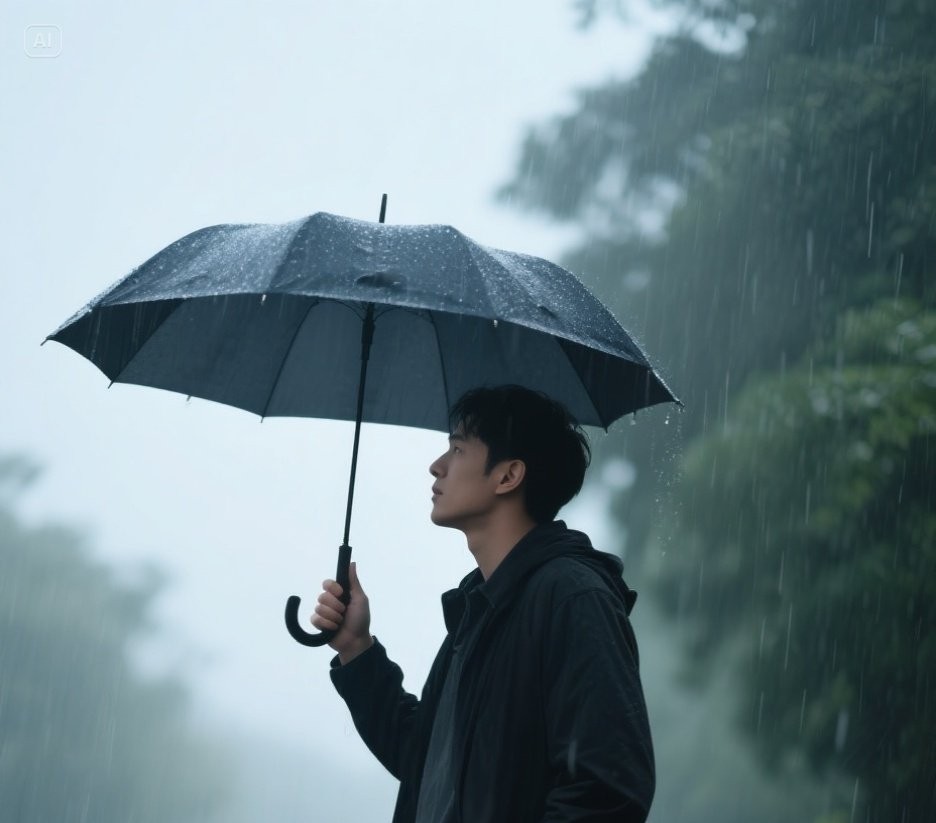
- Rain falling on jungle roads with detailed water effects
- Natural environmental dynamics that enhance the original image
Level up your team's AI usage—collaborate with Promptus. Be a creator at https://www.promptus.ai