You still use A1111. Until now.

Promptus vs Automatic1111

Promptus helps AI creators turn fragile workflows into reusable tools — without giving up local control.

Load Model
ControlNet
KSampler
Import ComfyUI JSON Ready
Package inputs + defaults CosyFlow
Run local or cloud Choose
What is a CosyFlow? A packaged workflow people can actually run again.
💀

Missing nodes

One workflow works on your machine, then breaks everywhere else.

Package dependencies
🔁

One-off JSONs

Your best workflows end up buried in folders and hard to reuse.

Make runnable tools

GPU bottlenecks

Stay local when you want. Use cloud GPUs only when needed.

Local first, cloud optional
Honest comparison

Keep the control. Lose the chaos.

A1111

Best for familiar image tinkering.

  • Prompt-first UI
  • Local SD muscle memory
  • Extension culture
  • Great when your setup already works
VS
Promptus

Best for reusable workflow execution.

  • Import ComfyUI JSON
  • Package workflows
  • Run locally or cloud
  • Share without setup chaos

Your workflows should not be fragile. They should be reusable.

Bring the workflow. Package the moving parts. Run it where it makes sense.

Local Unlimited Mode

Master Promptus to generate locally, privately, and unlock zero-limit creation.

1. Installing the ComfyUI Server

Promptus includes its own GPU server inside the desktop app. You don't need to manually install CUDA, Python, or other technical dependencies.

  • Open Profile → Open Manager.
  • In Promptus Manager (PManager), click Install ComfyUI Server.
  • Click Install—the app handles the download and setup automatically.

2. Running Offline

Generate images, videos, music, 3D, audio and more privately on your hardware without using cloud servers.
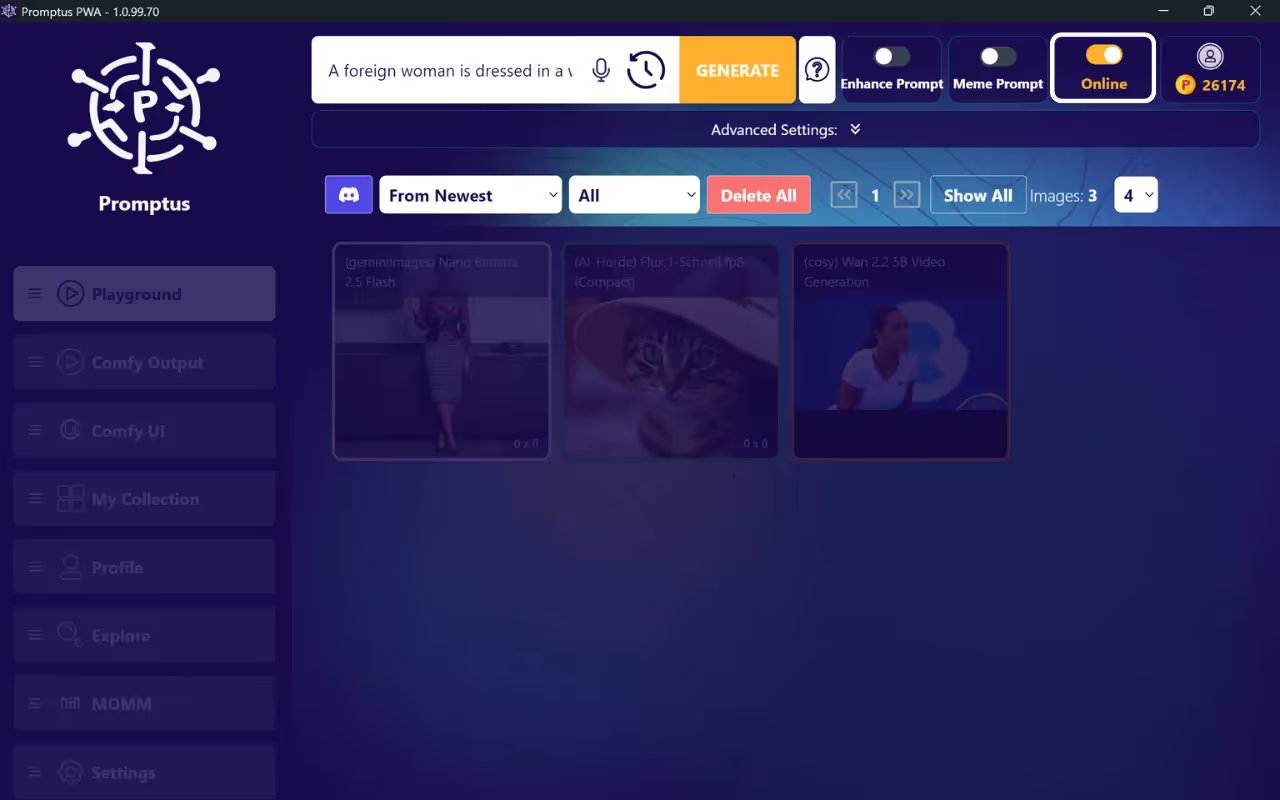
  • Switch the connection toggle from "Online" → "Offline."
  • Ensure models are downloaded while online first so they are available on your machine.
  • The app will indicate processing is happening locally once the GPU server is active.
Switch to Offline Mode

3. Adding Models & Cosyflows

Download the models you want to use locally. You can select from Cosyflow workflows and install your own models from Huggingface.

  • Go to Cosyflows → Select to Install Locally.
  • Click Download Model (approx. 10–20 min).
  • Restart the ComfyUI GPU server and refresh by clicking the Promptus logo in the app.

4. Private Generation

Local models only appear when you're in Offline Mode. Can create privately and disable Safety Mode.
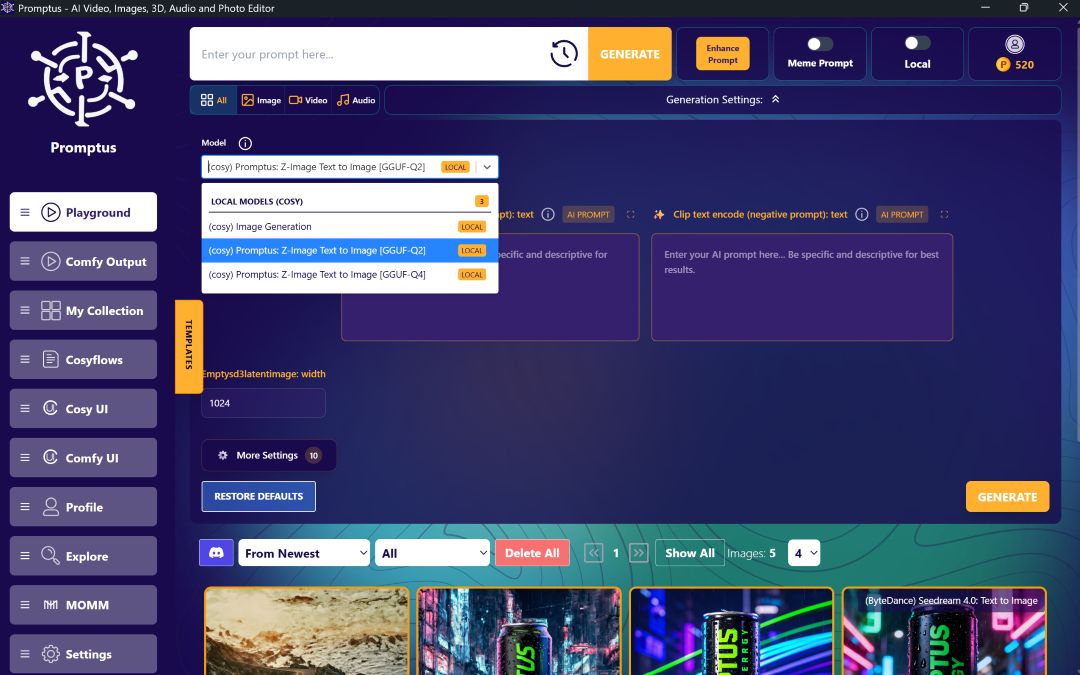
  • Go to Settings → Safe Mode and turn it Off.
  • Select a model from the Cosyflow Selections.
  • Enjoy total creative freedom with zero cloud-based restrictions.
Disable Safe Mode